
Your Password is about to Expire
If you've received an email saying your password is about to expire, you need to change it before the date in the notice. Once it expires you won't be able to sign in until it's updated.
At the office on a Council computer
- Open the change password page.
- Sign in with your Council account and current passphrase.
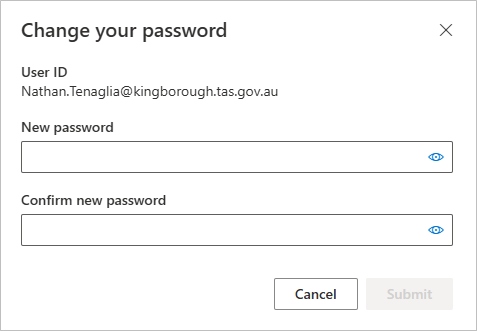
- Enter your current passphrase, then your new one twice.
- Select Submit.
Working from home
Connect to the VPN first, then use the same steps above. See Connecting to Systems from Home (VPN).
If you change your password without connecting first, your computer will keep asking for the old one. Connect to the VPN, lock your screen with Win + L, then unlock it with the new password.
Only have your phone
- Open the change password page.
- Sign in with your Council account and current passphrase.
- Enter your current passphrase, then your new one twice.
- Select Submit.
Already expired
You can reset your Council passphrase yourself, from anywhere, on any device — in the office, in the field or at home.
You need to have registered for self-service password reset first.
- Use the Forgot my password link on any Council sign-in screen, or go straight to passwordreset.microsoftonline.com.
- Enter your Kingborough Council email address, complete the CAPTCHA, and select Next.
- Select I forgot my password, then click Next.
- Choose your preferred authentication method(s) to verify your identity, provide the required response information, and then select Next.
- Enter a new password, confirm it, and select Finish. Refer to Creating a Strong Passphrase for tips on creating a strong passphrase.
You will see a confirmation and can sign in straight away. After your reset, you will need to sign in again on every device that uses your Council account — laptop, phone, tablet. If you skip one, Outlook or Teams on that device will keep prompting you or stop syncing.
What your passphrase must be
- Between 14 and 32 characters
- Not a single dictionary word
- Not a simple sequence such as
123456789 - Not built from personal information — your name, birthday, family, or the Council
- Different from passphrases you use anywhere else
Building a good one
A passphrase is four or more unrelated words. Longer beats complicated: length is what defeats guessing, not swapping letters for symbols.
The trick is that the words must be unrelated to each other and to you. Pick things you can see from where you are sitting, or open a book at random and take a word from four different pages. What makes it strong is that nothing connects them. For example: skittlesbottlephonetissue
Avoid song lyrics, film titles, sayings and quotes — they are the first thing attackers try, and a familiar phrase is not random however long it is.
Do not reuse it. If a passphrase leaks from somewhere else, anything sharing it goes too. If you struggle to keep track, that is exactly what 1Password is for.
After you change it
You will need to sign in again everywhere. Work through this list, or you will get sign-in prompts and sync failures for days:
- Your work laptop or desktop
- Outlook, Teams and OneDrive on your phone
- Any tablet
- A second computer, if you have one
- Any personal device with Council email on it
Most of these will also ask you to approve a multifactor prompt.
If you miss one, apps on that device may stop syncing or prompt repeatedly. Repeated failed sign-ins from a forgotten device can also lock your account.