
Kiosk – Leave Bookings
1. Log in to Kiosk
- Open the Kiosk login page.
- Ensure Windows Authentication is selected.
- Enter your network username and password.
- Click Log In.

2. Home Screen
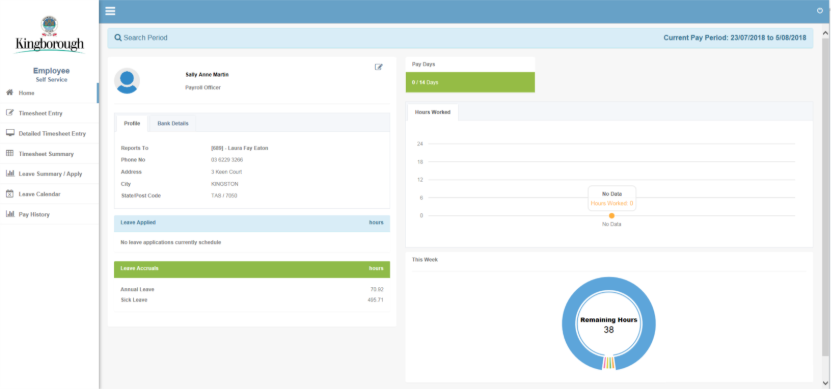
After logging in, your Home screen will display:
- Your reporting officer
- Your personal details
3. Open Leave Summary / Apply
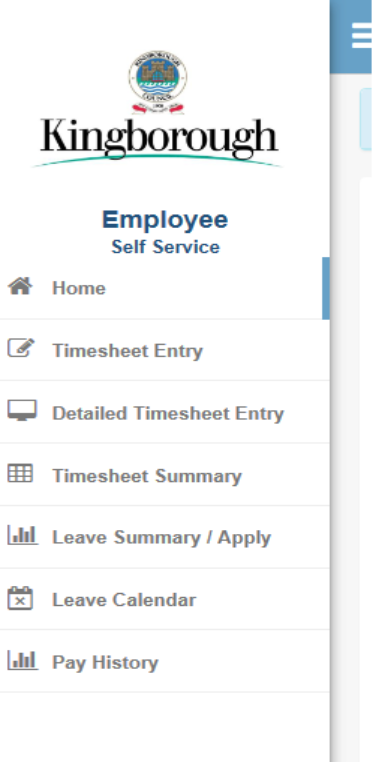
- Use the left‑hand navigation panel.
- Select Leave Summary / Apply.
This screen shows:
- Your detailed leave balances as at the end of the last pay period.
- A list of any leave you have already applied for
- The status of previous applications
4. Use Leave Projection
Important: Make sure that the leave dates you are applying are inclusive.
For example: 24/12/2025 would be booked as from the 24/12/2025 to the 24/12/2025
Also please make sure any part days are lodged as separate booking, because the system cannot determine which day is short.
If you want to check how much leave you will have at a future date:
- Click Leave Projection.
- Enter the leave type.
- Select the intended leave date (use the calendar picker rather than typing).
- Click Check.
The screen will expand to show your projected leave balance.
Click Cancel to return to the main Leave Summary page.


5. Apply for Leave
To submit a leave request:
- Click Apply Leave.
- Select the leave type.
- Choose the start and end dates.
- The system will calculate the number of hours required.
Note: If the hours do not populate correctly, contact Payroll as there may be an issue with your work pattern setup.
Add Comments
You must enter a brief comment for your manager.
For Sick/Carer’s Leave, indicate whether it is carer’s leave and the relationship of the person being cared for.
Upload Medical Certificates (Optional)
If you have a medical certificate:
- Scan and save it on your computer.
- Click Choose Files to upload it.
When you're ready, click Submit.

6. After Submitting a Leave Request
Once submitted:
- Your request will appear in the Leave Summary table.
- Your manager will receive an email notification for approval.
If you are a manager approving leave, you will need to log in to Kiosk and action the request.