
Downloading Document from ECM - Using Bluebeam
Due to PDF settings required to enable the viewing pane in ECM (see Viewing PDFs from Edge Browser - Help Hub for instructions on how to set the PDF settings), this currently conflicts with the Bluebeam default PDF settings. Please see the below instructions to open a document in Bluebeam that has been downloaded from ECM.
Select the document you would like to download and click the orange down arrow next to the check-out button. Then click download PDF.
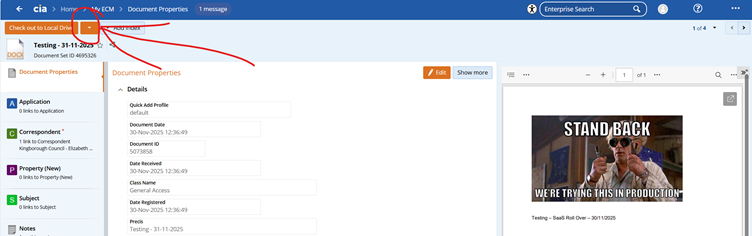
Or you can click the 'Check out to Local Drive' button – the big orange button, (which will lock it for editing for all staff) and with either of those options, the document will download and will appear in a menu in the top right hand corner of your screen.
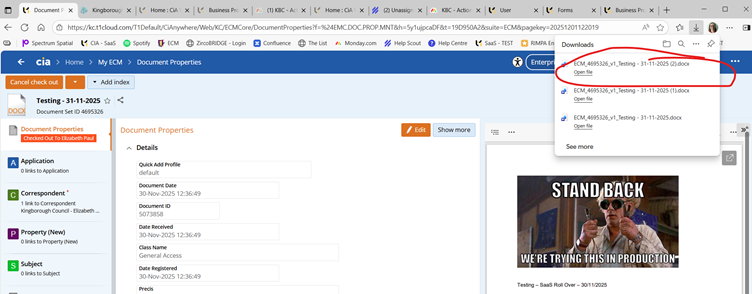
At this point you can right click on the document and ask to ‘Show in Folder’ or click on the little folder icon. This will then open your downloads folder and you can then open the document by double clicking and it will use your default browser, or you can right-click on the document and choose ‘open with’ and select the appropriate software application.
Don’t forget to check your document back in once you have finished editing as appropriate.